 |
|
      |
|
This page will help set up Flash viewing for Microsoft Outlook Express, and Outlook*. Microsoft Outlook Express
|
||
| Microsoft Outlook Express Preparing your copy of Outlook Express to view Flash movies is simple. After completing these steps, you will be able to see and hear Flash multimedia in right in your email box. |
||
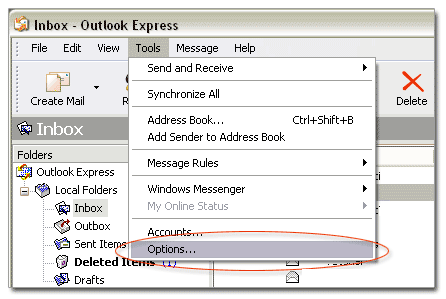
| STEP 1: From the “Tools,” menu select “Options...” You will then be presented with a tabbed dialog window, from this select the “Security,” tab. |
||
 |
||
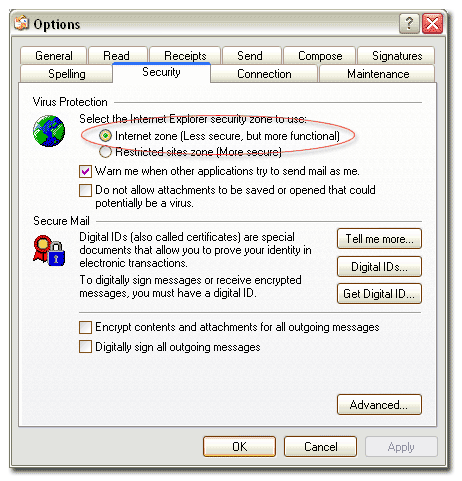
| STEP 2: Next, select the “Internet zone,” radio button. Press “OK,” to close the dialog window. You are now able to enjoy Flash in Outlook Express. |
||
 |
||
| Microsoft Outlook Preparing Outlook to view Flash is easy. After completing these steps, you will be able to see and hear Flash multimedia in right in your email box. |
||
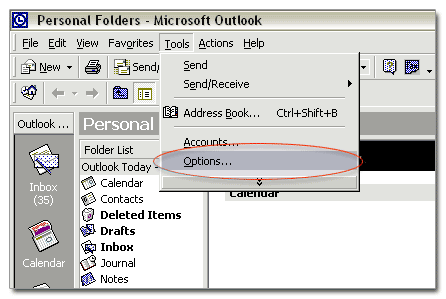
| STEP 1: From the “Tools,” menu select “Options...” You will then be presented with a tabbed dialog window, from this select the “Security,” tab. |
||
 |
||
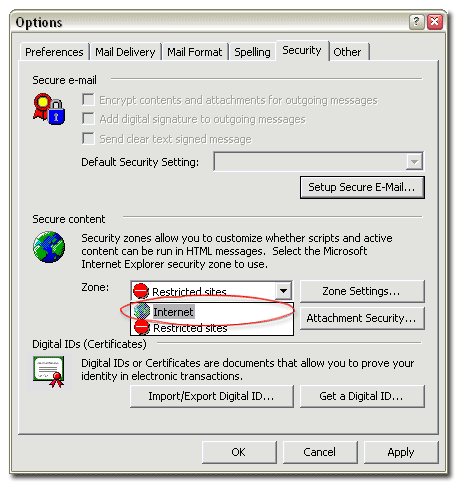
| STEP 2: Next, under “Secure Content,” select “Internet,” from the “Zone” drop down menu. Press “OK,” to close the dialog window. You are now able to enjoy the full range of dynamic media in Outlook. |
||
 |
||
| NETSPOTS HOME PAGE |